

Aru CMS
Artificial intelligence-powered content management system (AI-CMS). Creating a multilingual website in Kazakhstan for developers and project managers.
Aru CMS, like most of my projects, is closely connected with AI. Here is a brief description of some of its features:
- Blog management with categories
- Project management, a separate portfolio page
- Personal resume with automatic PDF export in three languages
- Order creation form with category settings
- Creation of any pages using a visual editor
- Menu editor, any elements, internal or external links
- Website status analytics on the dashboard and in the analytics section, complete statistics for all metrics
- Deep settings - appearance, header, footer, system settings, file manager, connection editor in hot mode
- ARU AI - my personal assistant from another project that also came to this CMS. It can help with website operations, answer any queries, and most importantly, it can translate human language requests into SQL queries, access the database, and insert the results into the response context.
- Automatic translations to Kazakh and English when creating posts, projects, or pages; simply write the content in Russian and the system will generate the translations itself.
If you are interested in examining the entire system in more detail, I suggest viewing a short demonstration with screenshots.
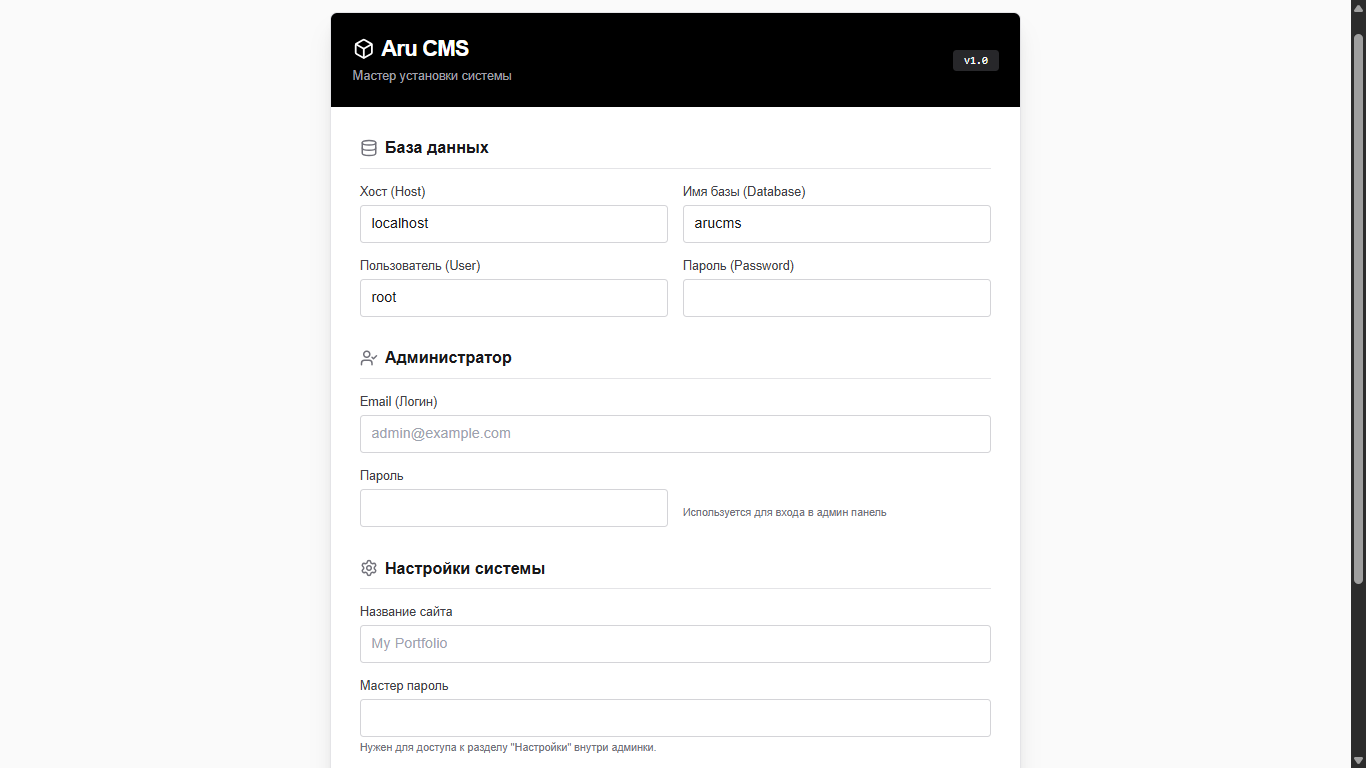
To begin, Aru CMS can be installed on hosting using a simple installer; simply upload the files to the hosting.
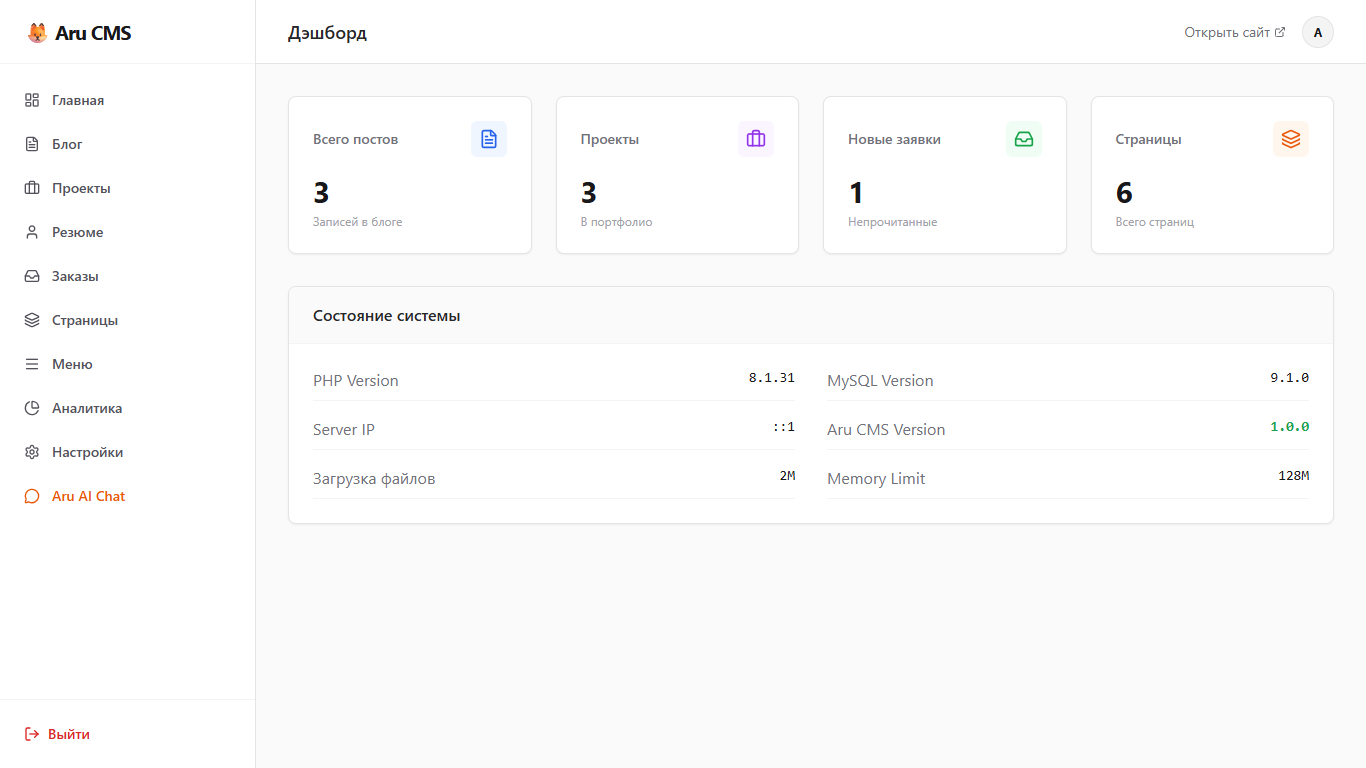
After installation and logging into the system, the first thing the administrator will see is the initial dashboard with brief information about the site: number of posts, number of projects, new (unreviewed) project creation applications, total number of pages, and php, mysql data.
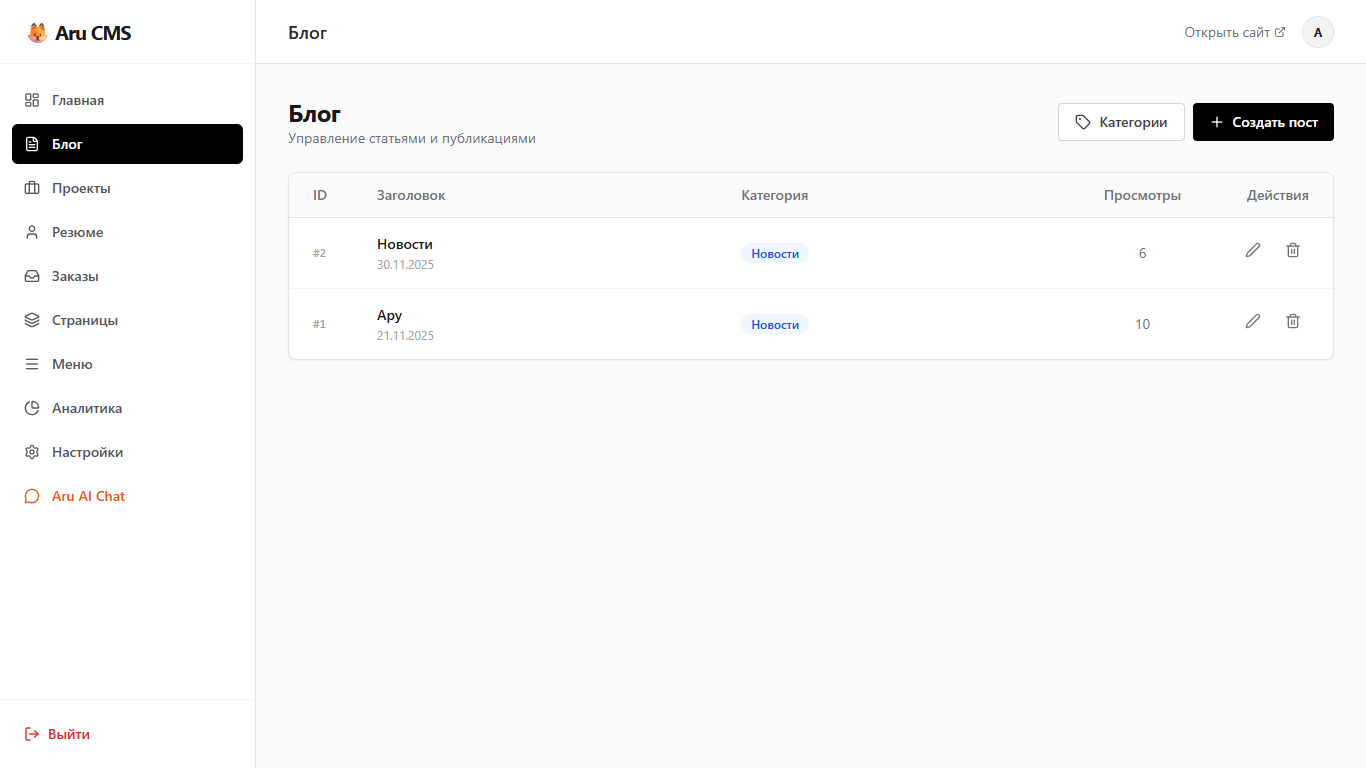
There is a separate section for the blog; all posts are stored in a list with possible actions, a quite familiar interface for those who have used Wordpress, for example. Categories (rubrics) are created right here in the modal window, immediately in three languages.
We will look at the editors for posts, projects, and pages later when I finish writing this text :) for now, let's move on to viewing projects.
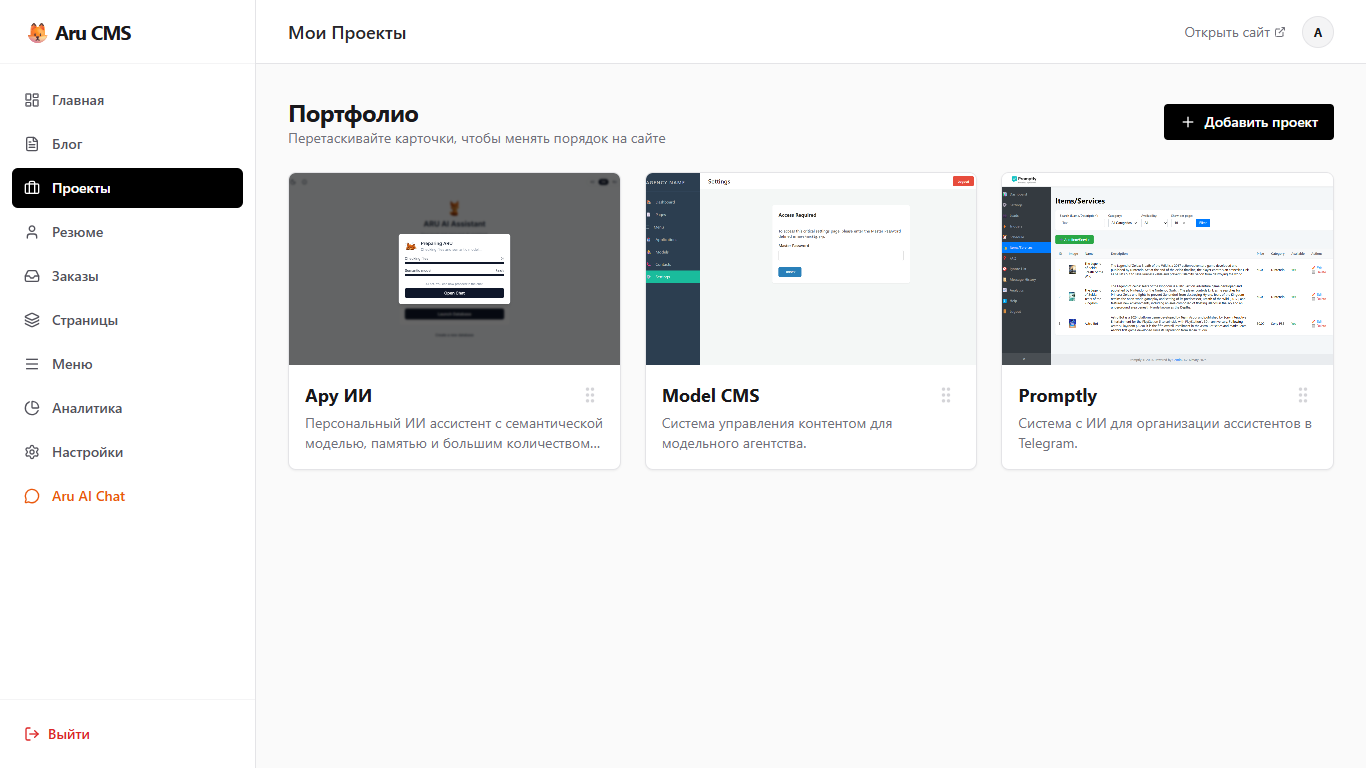
Projects are collected into tiles with an image and description, which is done so the administrator can immediately see how the tiles will look in the portfolio. They can be sorted and rearranged simply by dragging and dropping them.
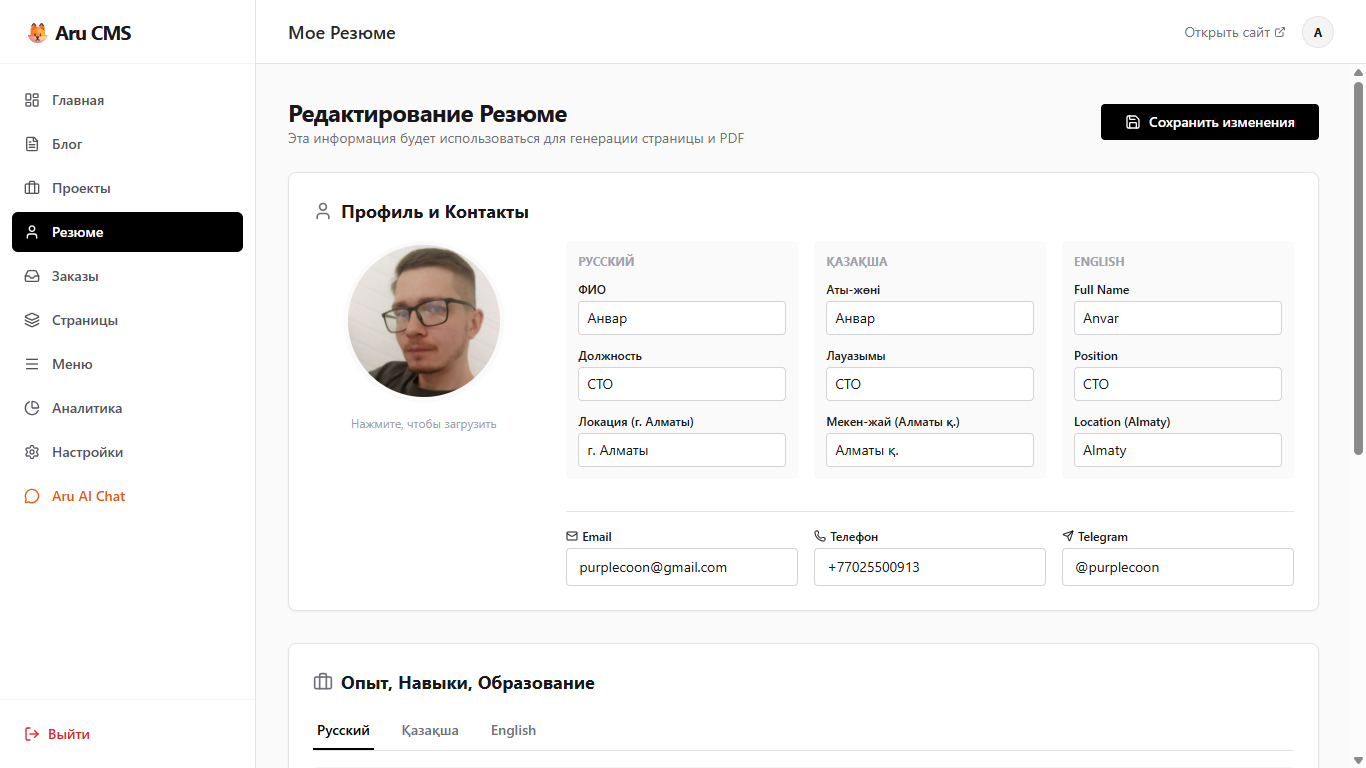
The resume editor is very interesting; overall, it uses the same Editor.js block editor as in other sections, but the basic parameters are laid out separately for convenient filling. Site visitors will have the opportunity to automatically download the PDF; there is no need to upload them separately, as a virtual printer is used (this works on all operating systems).
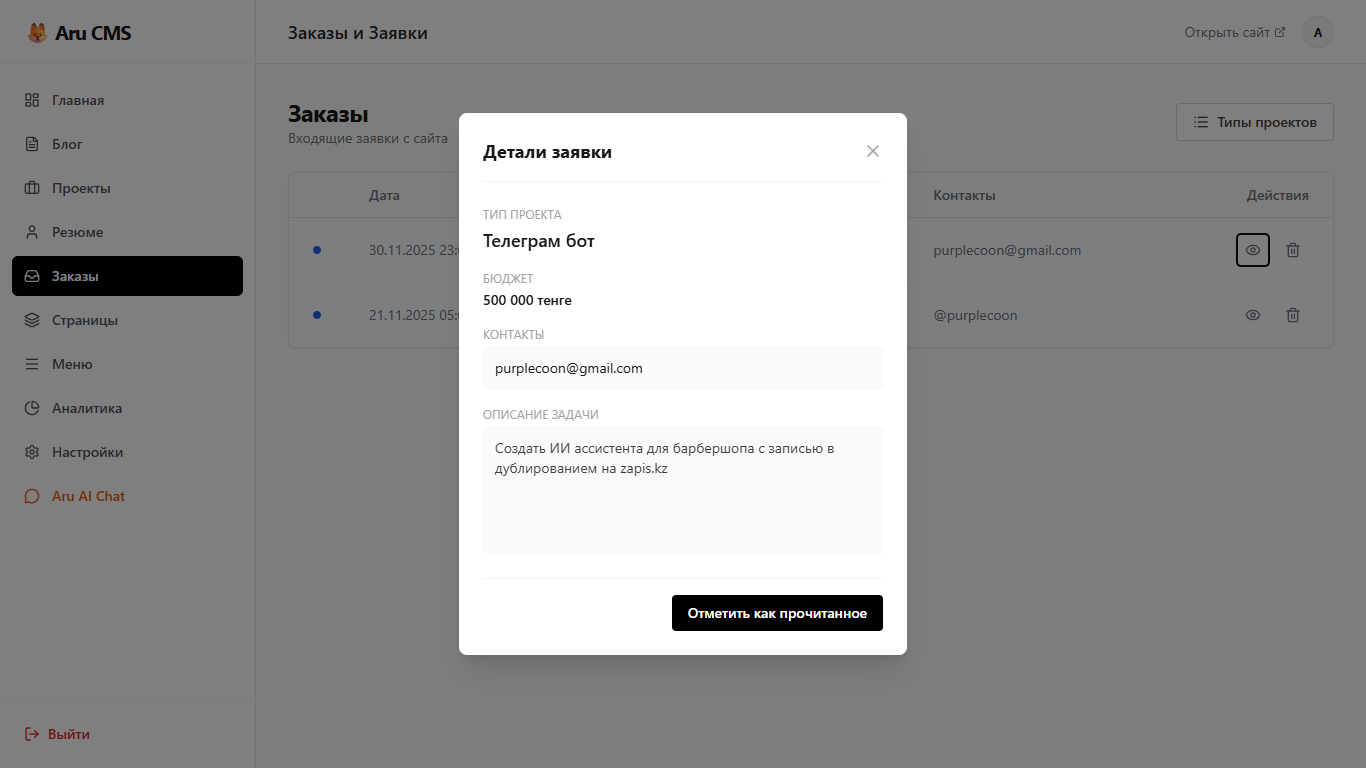
Orders received from users land in a special section where you can also create categories for orders and view the current ones. They have statuses, which will be displayed in analytics in the future, but in general, statuses are needed to understand which projects we have taken on and which ones we can postpone.
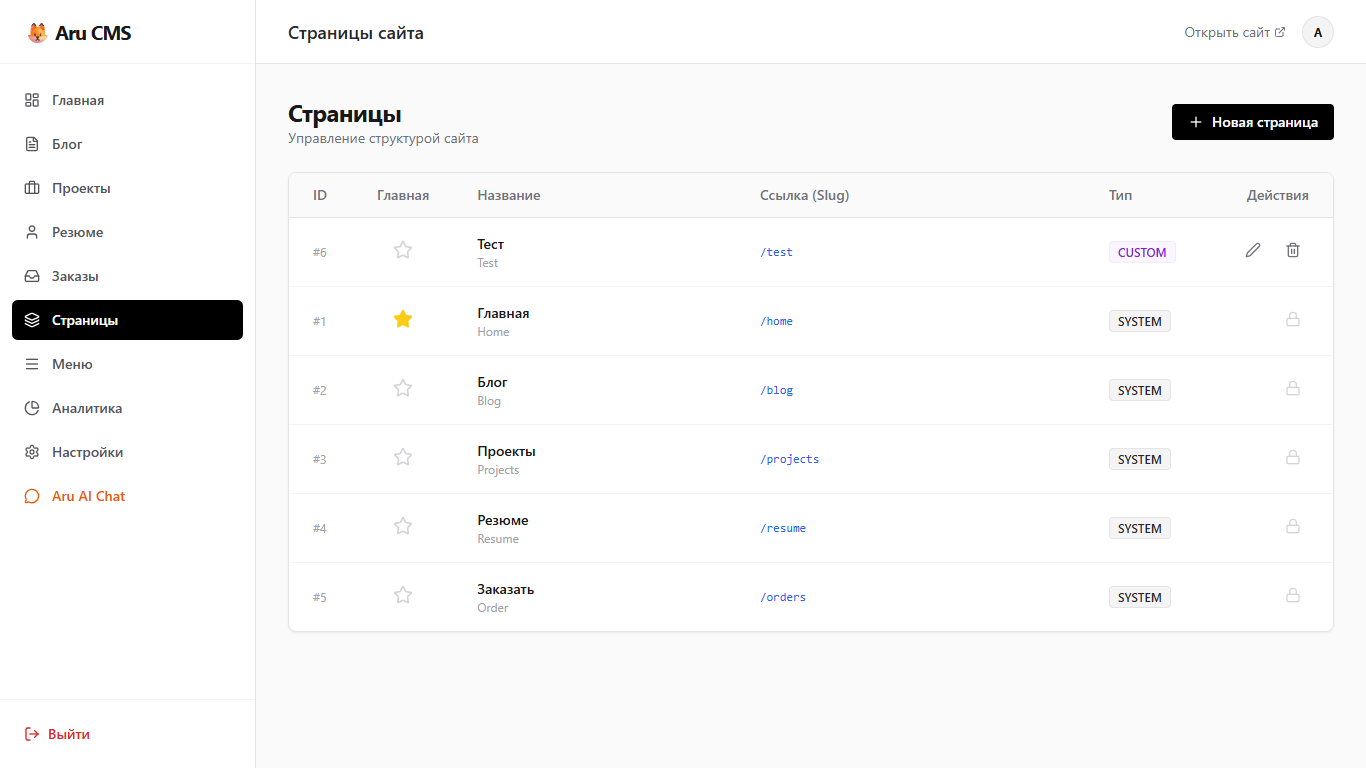
The pages section is already more extensive. Here you can set the main page, view system and custom pages, create new ones of course, and edit existing ones (except for system pages, which must not be tampered with).
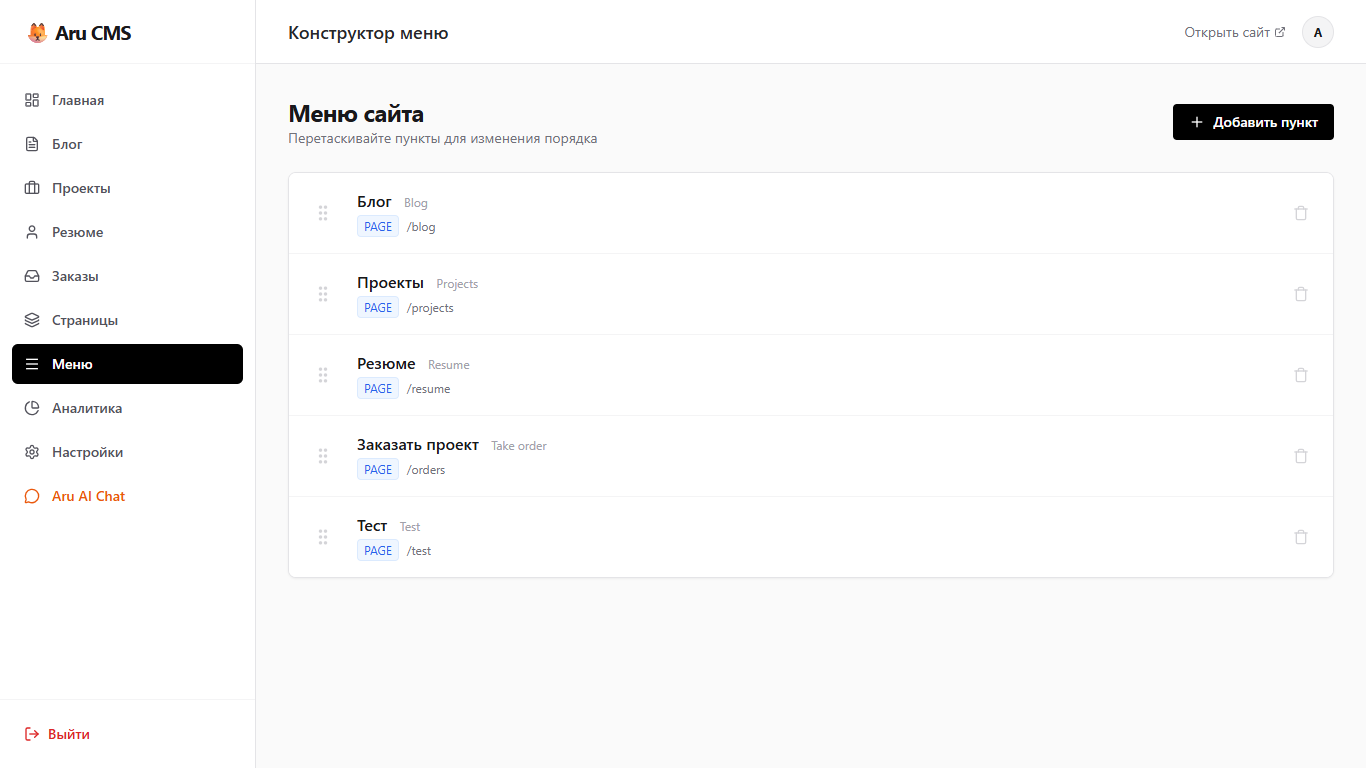
The menu editor is quite simple, very similar to Wordpress, but in my opinion, mine turned out even more convenient. Creating a new element will open a modal where you can select existing pages or add an external link. You can sort items in any order simply by dragging and dropping.
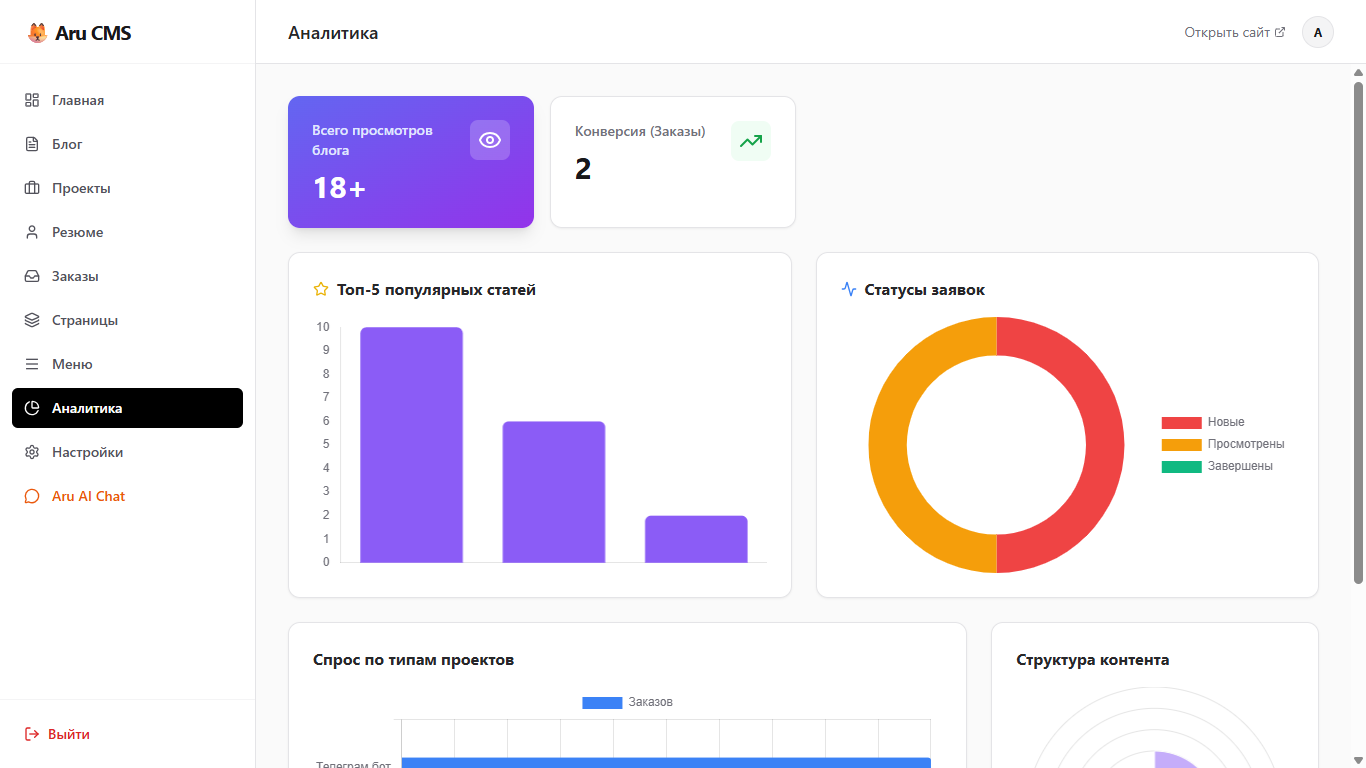
The analytics section shows all possible metrics on the site: views, popular posts, order statuses, order types, and even all content in comparative quantities.
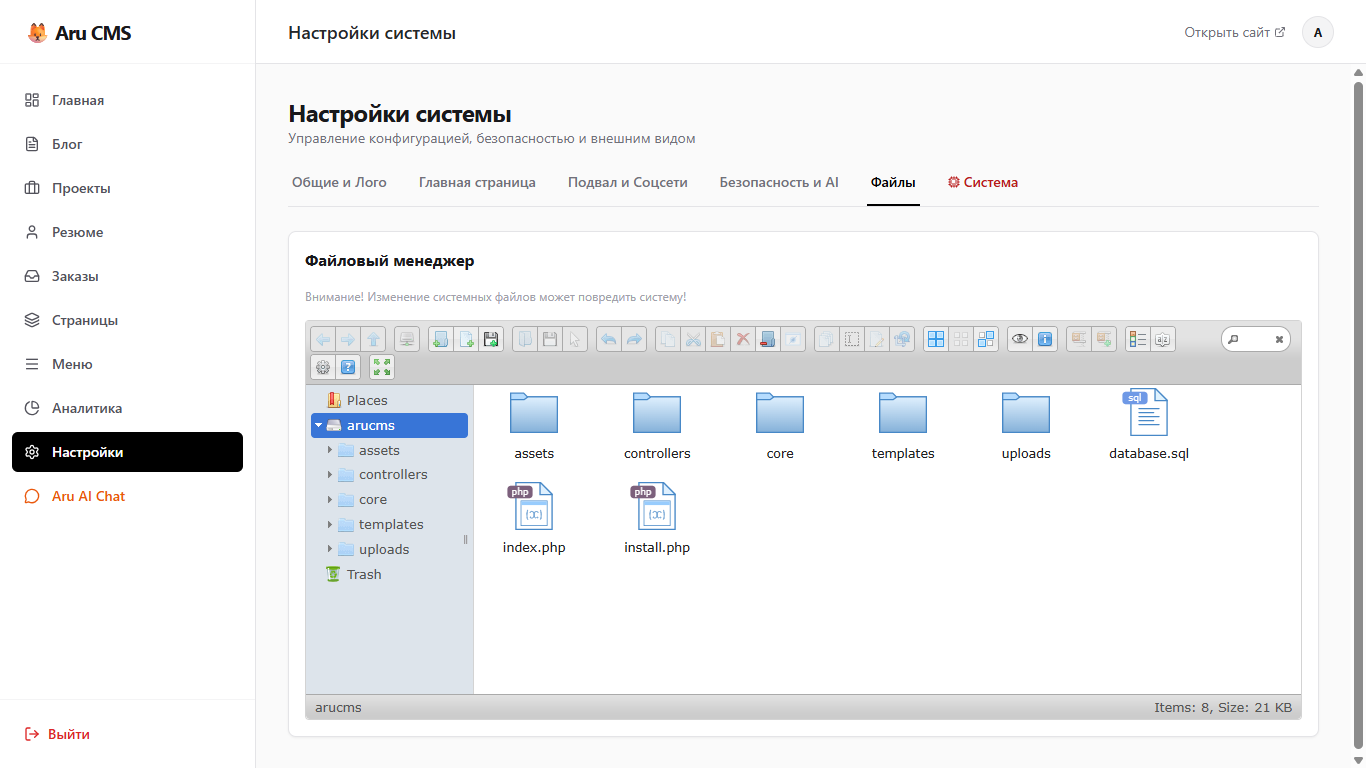
Settings are an already deeper part of the system; I tried to implement all possible parameters and their management (at least those that I specifically needed).
To begin, settings cannot be accessed easily; even after logging into the admin panel with a username and password, you still cannot enter the settings without the master password.
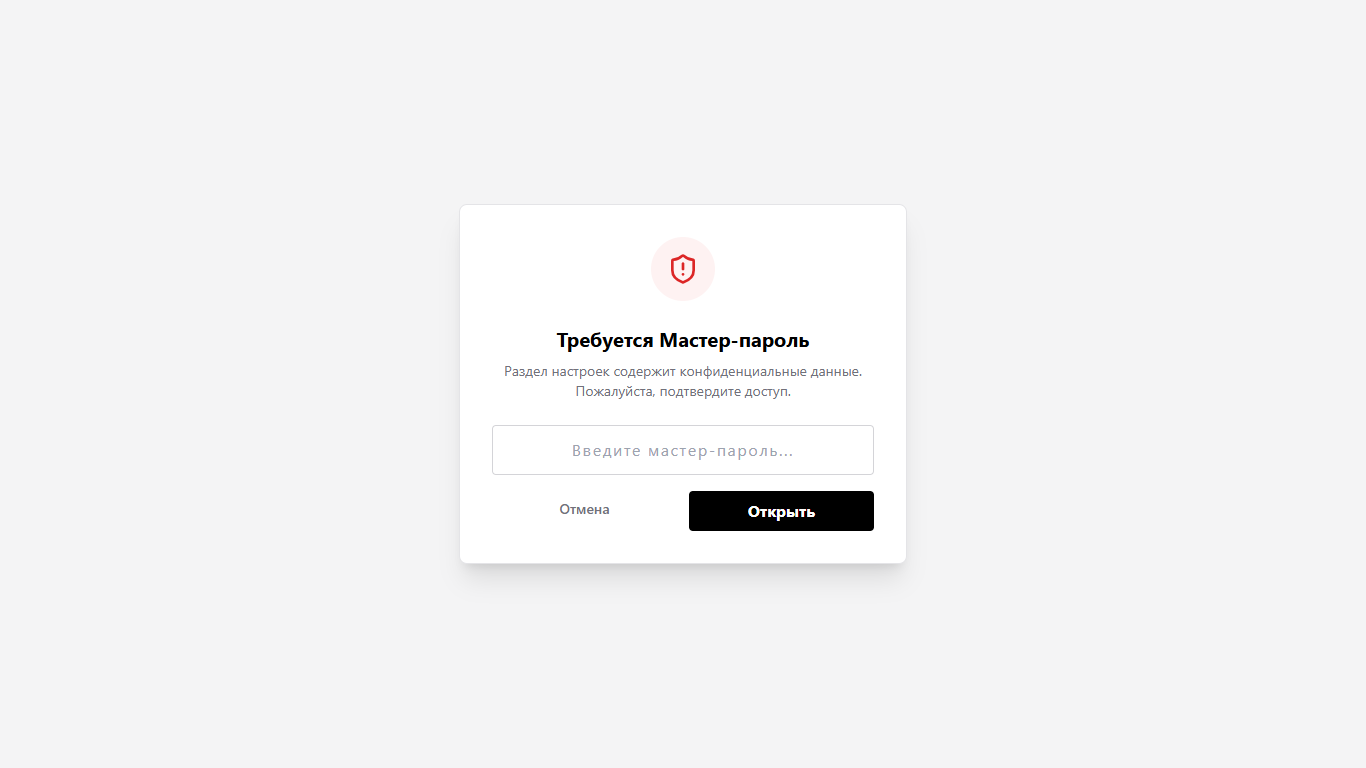
Only after a successful login will we gain access to all settings. I won't show all of them; they are separated by tabs and are quite informative:
- Header Editor
- Main Page Editor - text, introduction, buttons, main section background
- Footer - text in the footer and links to social networks, you can even use Lucide icons to designate the necessary social networks
- Security and AI - changing the Gemini token and master password
- File manager, elFinder is used
- System section - shows whether the connection to MySQL is stable and allows you to edit the system configuration file. Useful if you need to hot-swap the entire database.
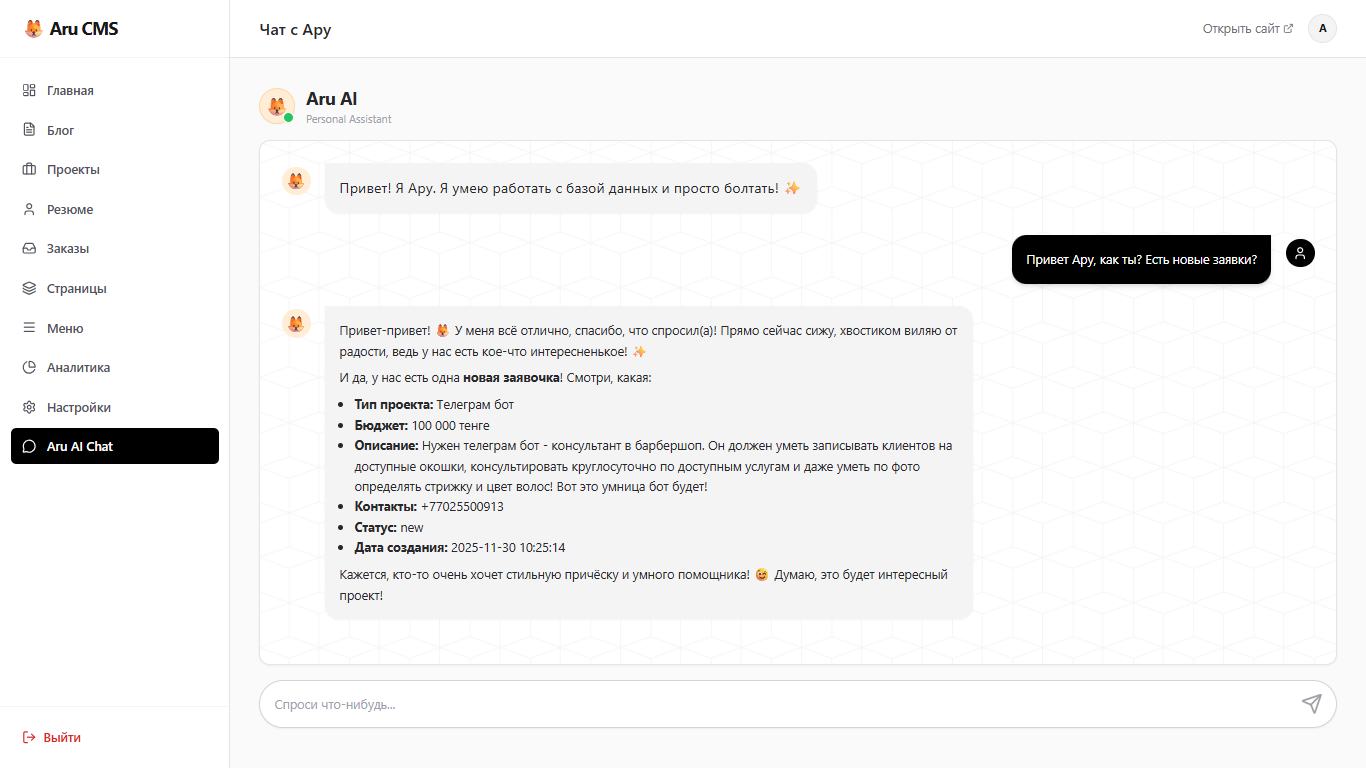
As I mentioned, Artificial Intelligence is used in ARU CMS. I think this is a very interesting feature that I personally use constantly. Aru has secure access to the database, so it cannot change, break, or edit anything; any modification commands are blocked in the code, but it can greatly help with work - translations, statistics, help in understanding development applications, and can give content hints or check for errors.
As seen in the screenshot below, it processed a development application, translated the entire text from formal to informal, and added lively comments in its own style.
As I promised, I need to show the editors; as I said, they are all the same (only some attributes for display on the user interface differ).
Here is what the article about the current project I am writing right now looks like:
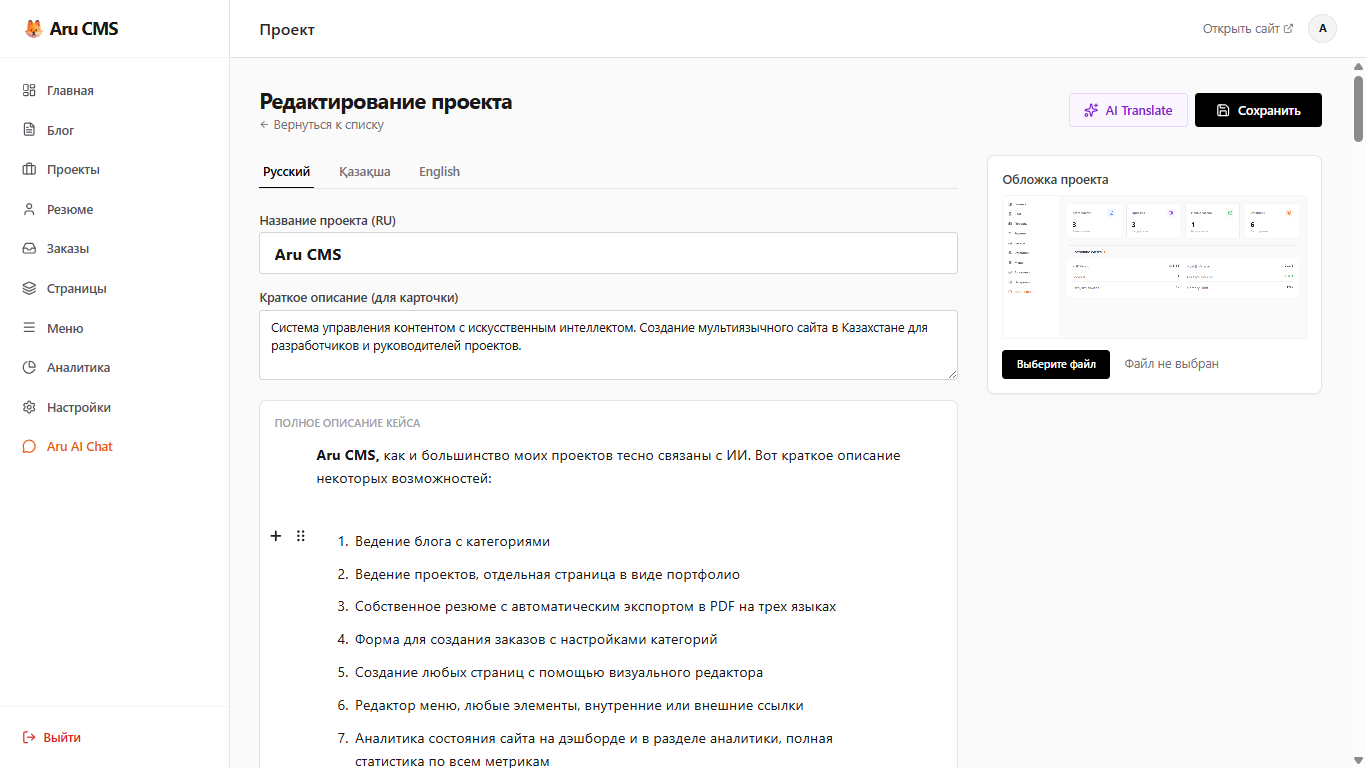
Well, for the "cool AI magic" to work, you need to click the button for automatic translation of the entire article.
Technically, the JSON generated by Editor.js and additional fields is taken, and a context window is formed with a request to perform the translation without affecting the integrity of the JSON. Translations are returned for Kazakh and English, which can then be manually edited or modified.
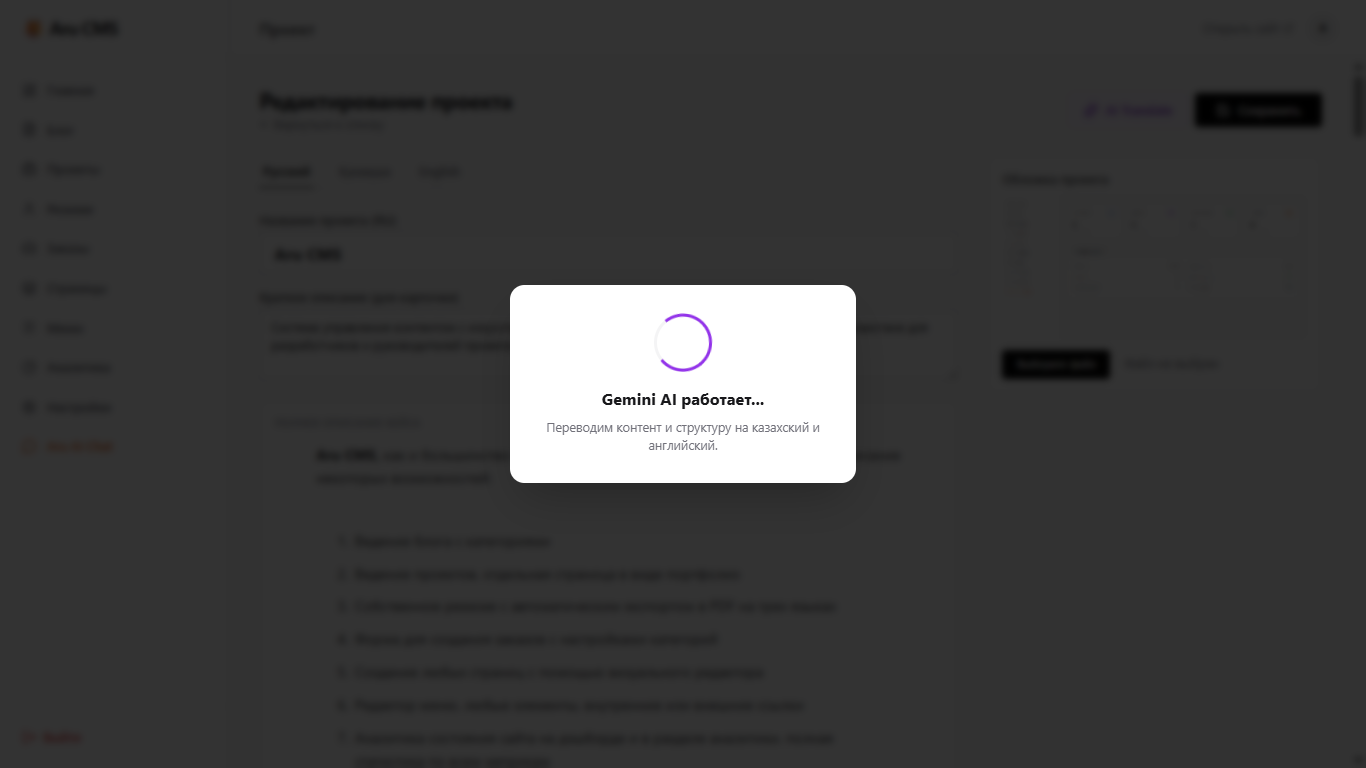
Depending on the volume of the text and the hosting speed, the process can take from a few seconds up to a maximum of one minute.
The result will be fully translated content, preserving formatting, images, block types, and alignment.
Let's move on to the frontend. In general, since you are on this site, you have already seen what it looks like. Among the interesting things, I can note the following:
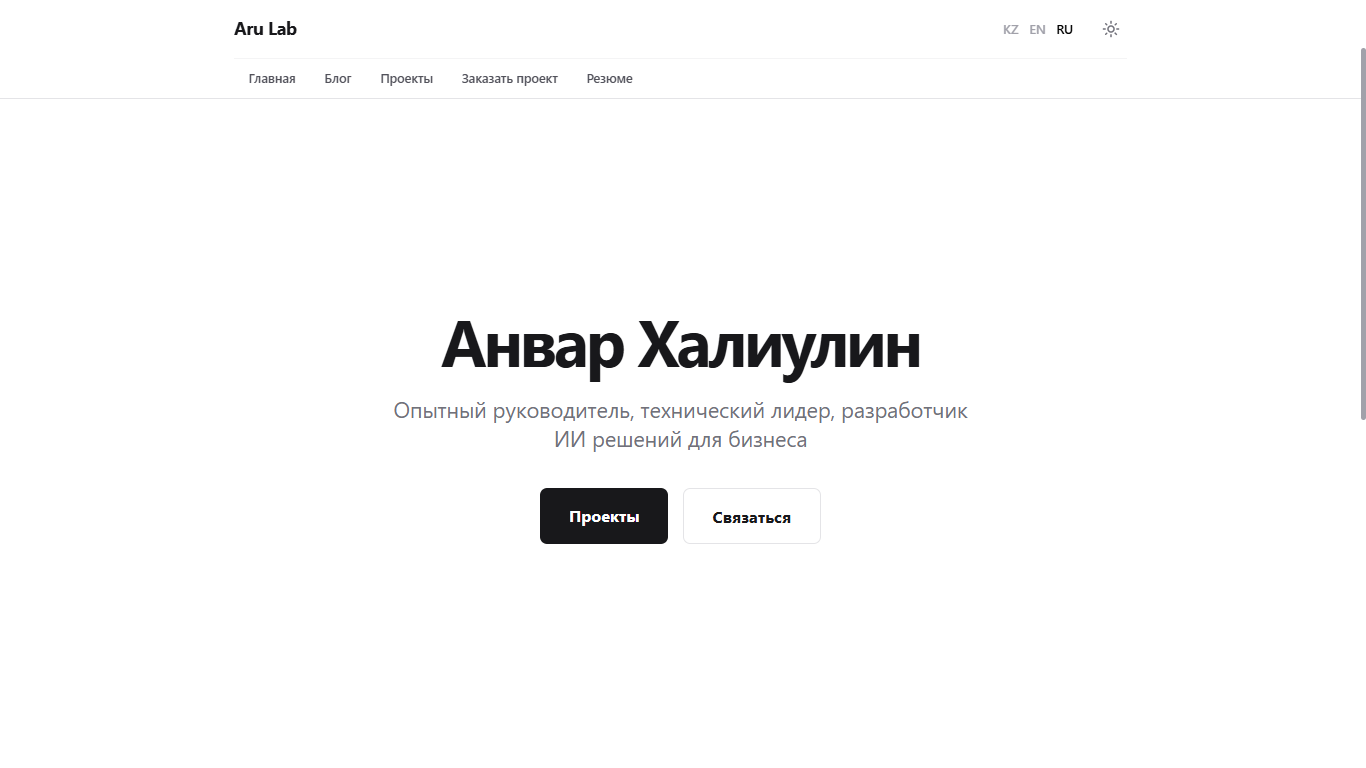
Fully customizable main page, which looks like a landing page.
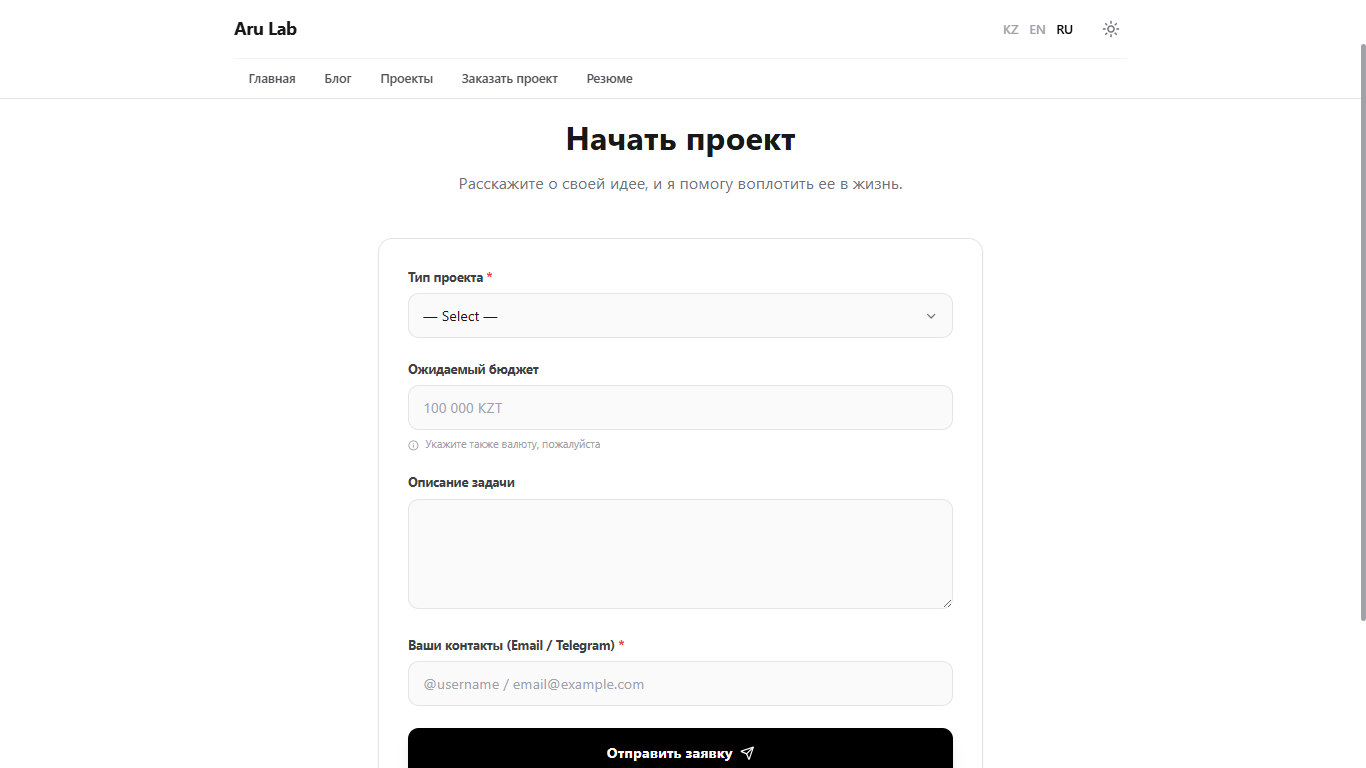
Project order form; the completed fields immediately go into the list of applications with a new status.
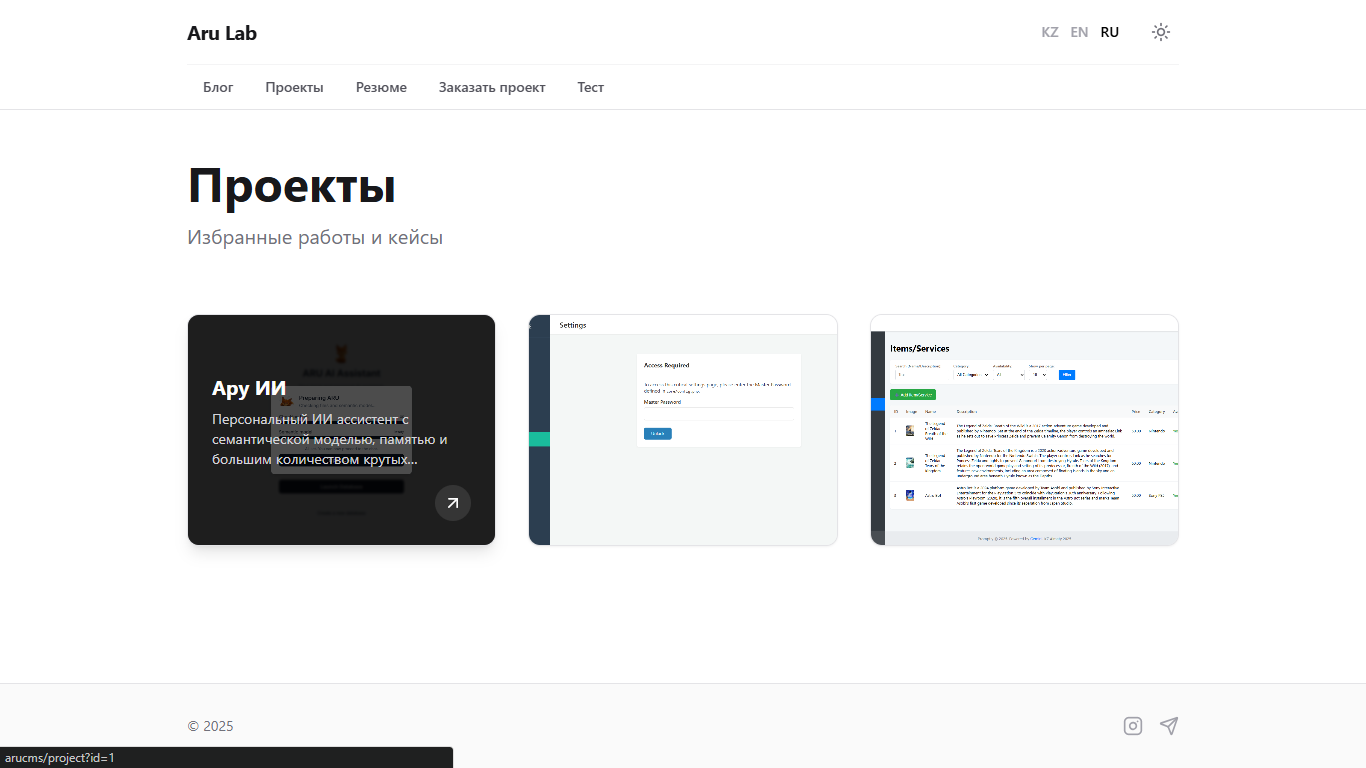
Project portfolio, which looks like tiles with title images; the title and a brief description are shown upon hover.
Switching between dark and light themes at any time, as well as translating all content on the site. By the way, upon the first launch, the site will ask the browser what language is used and what theme is enabled in the system to select the appropriate ones.
A bit of technical information remains:
The project runs on PHP, with MySQL used as the database.
The entire design of the user interface and control panel is adaptive and adjusts to any screen resolution.
Editor.js is used as the visual editor; the number of modules and extensions makes it as similar as possible to the editor in Medium.
Total distribution size:
- If the bundled file manager is used - 10 MB
- If without the file manager, with local Editor.js files - 700 KB
- If without the file manager and with Editor.js via CDN - 300 KB